The ordering of your CAML query matters…

If you ever catch yourself having to create List or Document Library Views programmatically – beware the CAML monsters!

J/K…

But you really do want to look out for how you generate and order your CAML if you are creating filtered views. I was working with a colleague a little while back and had the most awesome 2 days worth of troubleshooting sessions you could ever imagine…Not!

Here are the symptoms and how we troubleshooted:

The custom Web Part creates a unique view to a SharePoint List depending on various input data from a user. When the view is displayed in the regular List view everything looks ok. When that view was switched to the datasheet view, everything looked ok. But when the generated view goes directly into Datasheet View (which was an option), the data in the Datasheet view was funky. It was displaying some List items multiple times and omitting other items.

At first we thought that there might be something wrong with the List integrity, so we exported the List data to Excel. Data was there and it looked fine. Then we looked back at the List and Item ID’s to see if for some reason there were multiple items with the same data. Nope, the Datasheet view was showing the same items with the same ID’s multiple times. Then we tried to create a Datasheet view manually to see if it was something with the Web Part code or if it was a SharePoint bug. As it turns out, it was a little bit of both…

Using SPManager to carefully inspect and scrutinize all the properties of both the view generated by the custom Web Part and the view that was generated via the web UI we stumbled upon some suspect CAML! Dun dun dun….

Our custom Web Part was using CAML that looked something like this…

<Where>
   <Neq>
      <FieldRef Name="ContentType" />
      <Value Type="Text">sdfgdf</Value>
   </Neq>
</Where>
<OrderBy>
   <FieldRef Name="Title" />
</OrderBy>

The CAML that was generated via the List interface was like this:

<OrderBy>
   <FieldRef Name="Title" />
</OrderBy>
<Where>
   <Neq>
      <FieldRef Name="ContentType" />
      <Value Type="Text">sdfgdf</Value>
   </Neq>
</Where>

See the difference? We didn’t want to believe that that was it at first, but we updated the CAML for the Web Part and that got rid of the duplicate items in Datasheet view bug. What a load of mush right? Oh wells, problem solved.

A quick message from a sponsor: 

Tech Tip : Looking for a reliable collaboration tool? Try out hosted SharePoint and Exchange Add-Ons on high performance citrix vdi from CloudDesktopOnline and experience the ease of remote accessibility from your preferred device(PC/android/iOS) powered with 24*7*365 days top-notch technical support from Apps4Rent.

Los Angeles SharePoint User Group Meeting – May 28, 2009 & recap from last time.

Just a quick note for anyone that may be interested –

May 28, 2009

SharePoint Architect, Tim Odell, from Prosum will be presenting about InfoPath forms and workflow. Click here for more information and registration.

Recap from last time (April 23, 2009)

Gee whiz, time’s passed quick. Speaking was fun and I’d totally do it again but I remember being sick and losing my voice for nearly 2 weeks after that. I think we had around 60 people come last time and luckily it was a really active audience. Lots of participation.

Henry Ong

In case you were interested in the minimal slide decks (most of it was revolved around live demos and interactive Q&A):

Presentation #1: Content Types (Download PDF)

Presentation #2: SharePoint Event Receivers (Download PDF)

And in case you’re reallly interested in hearing me making a fool of myself, you can download the raw, unedited LiveMeeting recording of the whole thing here 🙂 Note that I forgot to switch the screen capture to my dev machine for probably like the last 20 minutes. What a noob I was…

Oh and the code sample I used can be found here.

Cheers!

Rich Text Fields in SharePoint Document and Picture Libraries

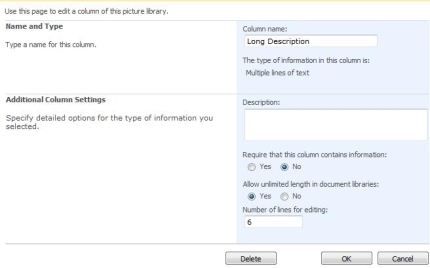
Did you know that if you have a multi-line text box/field in either a Document or Picture Library that your only formatting option is plain text? If you were using the same field in a List, then you get the options of  configuring the output as Plain Text, Rich Text or Enhanced rich text.

Multi-line text fields give you the ability to use plain, rich, or enhanced rich text...

Multi-line text fields give you the ability to use plain, rich, or enhanced rich text...

... but Document and Picture Libraries don't give you this ability.

... but Document and Picture Libraries don't give you this ability.

I didn’t think that was right so I went digging through the object model to see if there was some magic property that I could change to make this happen. Using the trusty SharePoint Manager utility, lo and behold the Rich Text Property!

There's a RichText property that is set to 'False' for multi-line text fields in Document and Picture Libraries.

There's a RichText property that is set to 'False' for multi-line text fields in Document and Picture Libraries.

The only drawback I’ve experienced with this so far is that if you ever update the column in any way, for example changing the name of the column, this property will reset itself back to the default ‘False’.

Who says you need MOSS to do a decent public facing website?

6sccom

http://6sc.com - Built using WSSv3

Not too shabby eh? I actually didn’t have much to do with this other than setting up the server and configuring Central Admin. What do you think?

Two of my colleagues (Eric Schrader and Karen Lyons) built this site up using all the typical features you get out of SharePoint like Lists, MasterPages, etc. and it only took them about 2.5 weeks to do so. There was also another colleague, Rich Sansom that built the Contact Us web part over a couple of days but other than that everything is SharePoint out of the box. If you’re interested in reading more about how they built it, you can check out a short write-up here.

Best part about how this was built, in my opinion, is that all the content is SharePoint List driven. 🙂

Showing SharePoint Read Only Fields in the Version History + Powershell Script

Scenario:

You have some kind of SharePoint List that is populated with data from some source. You require that some of the fields are read-only in SharePoint so that users cannot change them. You also have versioning turned on to track any updates to the list items whether it comes from the importing process or user changes.

Issue:

If the fields are marked as read-only, SharePoint will not display information about these fields on the version history page (versions.aspx) even if the values had changed. There is no option to change this in the web UI.

versionhistory1

This list item has 50+ fields but is not showing fields that are read-only.

Solution:

In order to display the versioned values of fields that are read only, you have to change the SPField.ShowInVersionHistory property to True.

Now the item's version history will show the changed values for all fields even if they are read-only.

Now the item's version history will show the changed values for all fields even if they are read-only.

Powershell Script

Here’s a Powershell script snippet that can change this property in a jiffy assuming you have all the fields in a column group.

[System.reflection.Assembly]::LoadWithPartialName("Microsoft.SharePoint")

$site = new-object Microsoft.SharePoint.SPSite("http://sharepointsite")
$web = $site.rootweb
$list = $web.Lists["Your List"]
$fields = $list.Fields
$count = 0
for($x = 0; $x -le ($fields.Count-1); $x++)
{
    $field = $fields[$x]

    if($field.Group -eq "Custom List Columns" )
    {
        Write-Host $field.Title
        $field.ShowInVersionHistory = 1
        $field.Update()
        $count++
    }
}
$web.Dispose()
$site.Dispose()
Write-Host "Updated $count fields"

Los Angeles SharePoint Users’ Group 2.0 – April 23, 2009

Hey Everybody, because I said so.

*Warning* This will not be your typical predatory SharePoint User Group meeting. We will not be serving the usual pizza and 2 liter sodas from the local pizza joint. We are going to have beers (drinks got foiled by people with fears, doh!) and good food. Well, we’ll have soft drinks too for the pansies. Limited space. Will start presentations on time. Death to PowerPoint slides. Will end presentations on time. *End Warning*

Details:
Thursday, April 23, 2009 @ 6PM

QuickStart – Gardena Office
1515 West 190th Street
South Tower – Suite 450
Gardena, CA 90248

Speaker: Henry Ong (That’s me)

Format: 2 x 30-minute presentations, 1 admin/business topic, 1 dev topic.

AGENDA

6:00-6:30 | Eat and drink before everyone else shows up.

6:45 pm | Admin/Business Topic
Content Type architecture strategies for those looking to use SharePoint as living knowledge/document/information repositories. Will also be discussing strategies for gaining user acceptance and twisting their arms without them knowing it.

7:15-7:30 pm | Q&A + Pee break

7:30 pm | Dev Topic
Let’s make SharePoint do what we want it to do with Event Receivers (Handlers). I’ll be demo’ing how to quickly develop a custom SharePoint Solution that will customize the permissions on every new document that is added to a List or Document Library.

8:00 pm | Q&A

8:15 pm | Breakout networking jam session

REGISTER HERE (or no food for you!)

Hope to see you there!

Some pretty good posts on SharePoint performance

Have you guys seen these blogs from dynaTrace before? They give some pretty good explanations, observations and recommendations on really common low level operations and performance issues in regards to SharePoint. Some examples:

SharePoint: Monitoring individual List usage and performance

SharePoint: Performance Problem with LookupField Control

SharePoint: Identifying memory problems introduced by custom code

SharePoint: More on column index and their performance impact

Creating a SharePoint A-Team for your organization

Anybody remember the A-Team? J/k, I’m not really here to talk about that A-Team. I’m here to talk about how and why you should create your own Corporate SharePoint A-Team. Spurred by Kristian Kalsing‘s post in regards to a need for SharePoint Functional Consultants, I’d like to comment on how you probably already have “Functional Consultants” within your organization but you just don’t know it yet.

Often times and I know we’ve all seen or heard about this very typical scenario:

A company Executive declares that SharePoint should be implemented to help with collaboration, document management, searching, and oh make sure we can use it for our intranet and extranet too. So the IT group sets up some servers, gets MOSS installed and configures some Site Collections and declares victory. They wipe their hands clean of their task and now it’s up to the business to make SharePoint “happen.” Especially true when SharePoint is supposed to promote self service and ease of use right? Muhahaha….

Unfortunately as we all know, if you put a business user or even an IT Pro down in front of anything new not much is going to happen. Especially if there isn’t a very experienced SharePoint Professional/Consultant that can lead the way. Sure you can send some people to trainings and have them come back as your organization’s uber-SharePoint geek but that is really not a replacement for more seasoned “Functional Consultants”. But what if you can’t afford to hire these SharePoint specialists?

Enter the age of SharePoint Business Analysts.

I think SharePoint-centric Business Analysts/Business Systems Analysts will become the most valuable pieces of the puzzle as SharePoint matures in your organization. They will be able to conjure up crafty out of box or custom solutions with minimal effort as they quickly identify and relate the tools that are available in solving business problems. And better yet, you can probably do this with your existing staff. So if I was tasked with creating a SharePoint task force with long term success in mind, it would look something like this…

SharePoint Architect/Senior SharePoint Technical Lead – This person should have as much of these skills as possible. This person will play the role of the overarching SharePoint evangelist for your organization. They will also help guide, mentor, coach, and recommend suitable solutions to business problems that the Analysts come up with.

SharePoint Developer – Good starting points for required skillsets are here and here. This person will work in tandem with the SharePoint Tech Lead in coordinating plans of attack. Especially since nowadays with Powershell in the game a lot of things can be handled by either/or. They will accomodate requests that can’t be done out of the box like custom web parts, LOB integrations, etc.

The Analysts – Much like “Functional Consultants” these people will be the glue between the business units and the SharePoint team over in IT. Together with the SharePoint Lead and Developer, this group could be considered your internal SharePoint Committee or User Group. Note that I’m not saying these Analysts should be dedicated fulltime to this role either. The amount of capacity that these resources should be contributing is totally dependent on the company and its goals in getting the most out of their SharePoint deployment. But, in my opinion, these people should exhibit the following traits at minimum:

  • Passion for process improvement.
  • Yearns for learning.
  • Enjoys showing others how to do new things.
  • Web and tech savvy.
  • Patience.

In my opinion these people can also originate from either the business or technology side. For example, you have a new Accounting Intern that’s trying to carve out a new career. Although this person has never heard of SharePoint before, being a Millennial this person is probably already more web and tech savvy than your whole accounting staff put together. And since you don’t have any ‘real’ work for them to do yet, you stick them on the SharePoint Committee. Now I see two benefits to this. One is that the Accounting Intern now has the ability to explore the interworkings of the Accounting Department, observing processes and what not. The second benefit is that by being on the SharePoint Committee, the Accounting Intern will now be able to take what she learns about SharePoint and directly apply it to cumbersome business processes that have probably been in place since before she was born! The Accounting Intern could for example use InfoPath to create electronic approval forms and have them kick off some workflows or help determine what thresholds should be used for the Accounting Director’s dashboard. Eventually this person will become an Accounting SharePoint user expert in no time with guidance from the SharePoint team.

The other example is of someone coming from the technology side. Say you have a veteran Systems Engineer, very experienced in SharePoint administration, but hasn’t really been happy lately. Not to mention he totally has a crush on the new HR Director. So he’s been expressing interest in being more involved with helping HR improve their business processes through the use of SharePoint. So he becomes the part time HR Analyst/representative. After some interviewing with the HR Director, right off the bat he realizes that he can help them set up some SharePoint Lists for managing incoming recruitment efforts! And then later on he shows them how to use Content Types to help manage their employee files within Document Libraries and yada yada… The list goes on. So after a while the Systems Engineer would probably know enough about Human Resourece to be an HR Generalist if he wanted to be.

So as you can see, you may already have SharePoint “Functional Consultants” from within your own organization by utilizing grassroots efforts and a little bit of time. If you can afford to champion the effort, just make it happen!! 🙂

Purging a SharePoint List using Powershell!

Have you ever wanted a way to quickly purge a SharePoint List or Document Library? With some help from this blog post I was able to come up with a Powershell script that you can use to empty a SharePoint List very quickly. This example also deletes all items recursively keeping the folder structure intact.

Start-Transcript ‘c:\powershell\logs\transcript.txt’
[System.reflection.Assembly]::LoadWithPartialName(“Microsoft.SharePoint”)

$site = new-object Microsoft.SharePoint.SPSite(“http://localhost&#8221;)
$web = $site.rootweb
$list = $web.Lists[“Name of your list that needs cleansing”]

$caml='<Where><Eq><FieldRef Name=”ContentType” /><Value Type=”Text”>Item</Value></Eq></Where>’

$query=new-object Microsoft.SharePoint.SPQuery
$query.ViewAttributes = “Scope=’Recursive'”
$query.Query=$caml  | Write-Output

$items=$list.GetItems($query)

# Pipe results to a loop and delete each element

$items | % { $_.Delete() }

$web.Dispose()
$site.Dispose()
Stop-Transcript

Much of the magic is in the CAML query as that is where you define what you’re looking to delete as well as if you want it to work recursively down the List structure or not. Cheers!

2009 SharePoint Best Practices Conference – San Diego | Day 1

I’ve been to a couple of DevConnections in Vegas and last year’s SharePoint Conference in Seattle, but there’s something different about the SharePoint Best Practices Conference. It’s just so much more… for a lack of a better word… intimate!

With just around 350 in attendance, the ratio of top-tier SharePoint Pro’s & MVPs to attendees definately pays for the conference in itself. Heck, how often do you get to sit and have lunch with Bob Fox, Joel Oleson, Robert Bogue, Jason Medero, Gary Lapointe, Maurice Prather, and Mike Fitzmaurice all at the same time eh? I had an awesome time sitting in between Joel and Rob Bogue as they debated the merits of the SharePoint Certified Master/Architect Programs as well as what it means to even have that title… certified or not. But that’s a story for another day.

Another thing I noticed that was odd…well not thaaat odd, but there were a heck of a lot more females around than I had expected. I’m a guy, can’t blame me for noticing these kinds of things right? Sheesh! Out of all the SharePoint/Tech events I’ve been to the ratio was somewhere between 1 female to 40-60 males. But at this conference, I could honestly say that it was more like 1 gal to every ~10 guys.  And it wasn’t like the sessions I attended were crazily lopsided greater than that ratio either. That’s pretty good if you ask me! Maybe I’m crazy but it sure seems like SharePoint has not only grown greatly as a platform but has also picked up a whole new generation of female IT Pro’s and Dev’s along the way as well! Maybe Natalya, Amanda, Heather or Laura can comment on that. 🙂

Crappy iPhone shot of Joel Oleson's keynote

Crappy iPhone shot of Joel Oleson's keynote

Design a site like this with WordPress.com
Get started